Installation
Install LZ SKU Sync in the Shopify store that should receive your Zoho Inventory products. You will then activate a plan and connect the source Zoho organization.
Before installation
Confirm that you can install apps in the intended Shopify store. If you need to purchase a plan, use an account authorized to approve the charge. Have your Zoho Inventory account ready for the next step.
Step 1: Install from the Shopify App Store
- Open LZ SKU Sync on the Shopify App Store and select Install.
- Sign in to Shopify if prompted and confirm the correct store is selected.
- Review the requested app access and complete Shopify's installation flow.
- Open LZ SKU Sync from the Apps area of Shopify admin.
If the app is already installed, open it directly from Apps in Shopify admin.
Step 2: Activate a plan
If your store has not purchased a plan, the app opens the Pricing page.
- Review the plan names, current prices, included sync credits, and validity shown in the app.
- Choose a plan and review the charge on Shopify's approval screen.
- Approve the purchase to activate access, or cancel if you do not want to proceed.
- Return to LZ SKU Sync and check the plan details on Home.
Plans use a one-time purchase with a fixed credit allowance and one-year validity. Syncing requires both an unexpired plan and remaining credits. Check the in-app pricing screen for the current offer before purchasing.
Step 3: Review the dashboard
On Home, check the active plan, purchase and expiry information, and total, used, and remaining credits. The dashboard also summarizes product creation and update activity.
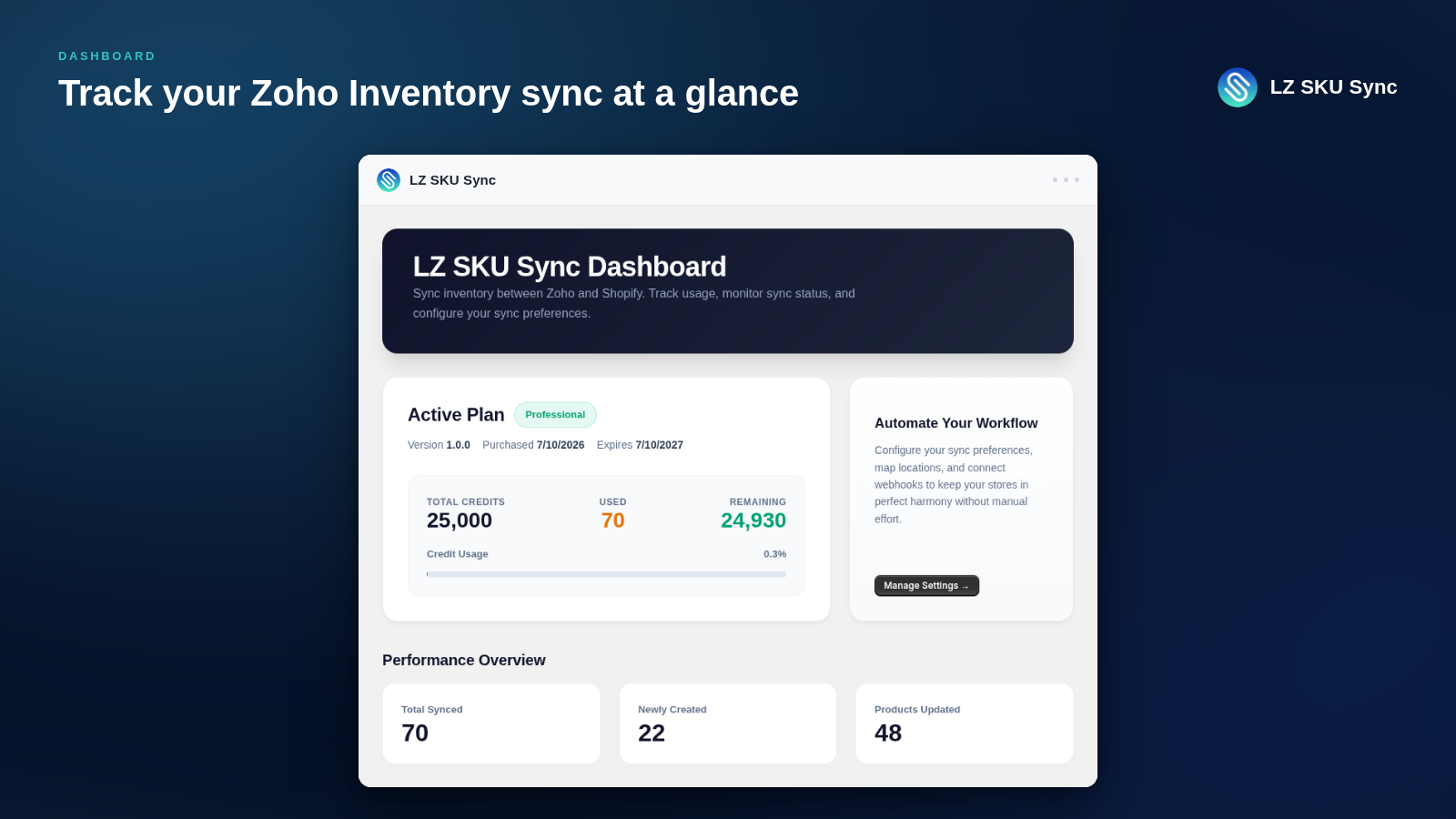
Example dashboard. Your plan, credit usage, and sync totals will reflect your store. Select the image to view it at full size.
Step 4: Open Settings
- Select Settings in the app navigation.
- Open the Authentication tab.
- Continue with Zoho authentication.
The other settings tabs become available after you connect Zoho and save the organization. Sync Status additionally requires saved sync preferences.
If installation does not complete
- Confirm you are signed in to the intended Shopify store and have the required app permissions.
- If you canceled a plan approval, reopen the app and review Pricing when you are ready.
- If a charge was approved but the app still shows Pricing, reopen LZ SKU Sync and contact support if the plan does not appear. Include the approval time and store domain.