Running a Sync
Start with a manual sync and check the results in Shopify. Then enable Always Sync if you want supported Zoho changes to trigger automatic updates.
Before starting
- Complete Authentication and save Sync Preferences.
- Check that your plan is active and has remaining credits.
- Confirm the source organization, warehouse mappings, exclusions, product fields, and status settings.
- For your first run, use a small demonstration catalog and record the source SKUs and quantities for comparison.
Manual sync scope
Start Product Sync processes eligible inventory from the mapped warehouses. It does not provide a single-item selector. Check the scope and preferences before starting a run on a live store.
Start a manual sync
- Open LZ SKU Sync → Settings → Sync Status.
- In the Manual Sync section, select Start Product Sync.
- Wait while the app loads inventory and starts the background session.
- Monitor the session status and progress counts.
| Count | Meaning |
|---|---|
| Total | Products queued for this session. |
| Synced | Products counted as successfully processed. |
| Failed | Products whose processing failed. |
| Skipped | Work marked as skipped, such as pending items after cancellation. |
| Pending | Products still waiting to be processed. |
When the session finishes, review any failures and verify the actual product values. Check Sync Log → View for detailed events if a field did not update as expected.
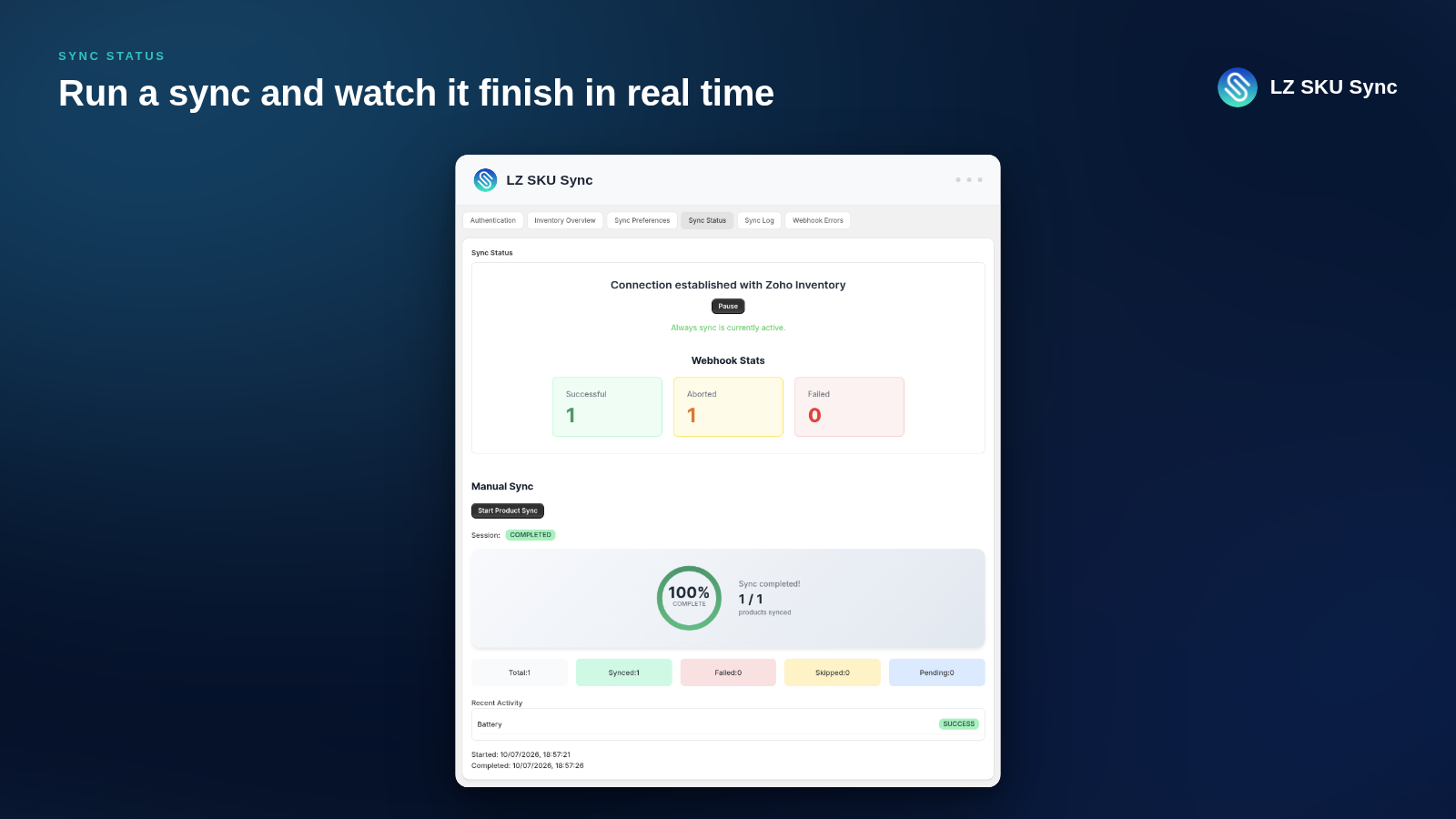
Example Sync Status screen with a completed manual session. The upper section shows the automatic workflow status and separate webhook statistics. Select the image to view it at full size.
Pause, resume, or cancel a manual session
Use the controls in the Manual Sync section:
| Control | Effect |
|---|---|
| Pause Sync | Pauses further processing in the session. |
| Resume Sync | Continues a paused session. |
| Cancel Sync | Stops the remaining work in the session. |
An item already being processed may finish before a pause or cancellation takes effect. Cancellation does not undo changes already sent to Shopify.
If the app reports A sync is already in progress, return to the current session and wait for it to finish, resume it if paused, or cancel its remaining work before starting another full run.
Retry failed items
- Open Sync Log, locate the failed item, and select View in the Audit column.
- Read the error and resolve its cause.
- If a failed-item retry is available in Sync Status, select Retry … Failed Item(s).
- Review the new session and check the result in Shopify.
Retry uses the queued product data
A retry uses the product data from the failed session. If you corrected an item's SKU, price, stock, or other source values in Zoho, start a new manual sync after the existing session finishes so the app fetches the latest inventory. A retry is useful when the original data is still correct and you have resolved a connection or access problem.
Enable automatic updates
- Open Sync Preferences → Change Sync Preferences.
- Set Sync Frequency to Always Sync.
- Select Save Sync Preferences and wait for confirmation. If Zoho returns a workflow or webhook setup error, resolve it before proceeding.
- Open Sync Status.
- In the Connection established with Zoho Inventory section, confirm Always sync is currently active.
- Make a controlled change to an eligible demonstration item in Zoho Inventory.
- Allow time for processing, then compare the Shopify result and check for a WEBHOOK entry in Sync Log.
Automatic updates depend on the Zoho workflow delivering the event and the app successfully processing it. Processing time varies with the workload and connected services.
The Sync Status screenshot above shows the connection status and webhook statistics in the upper section.
Pause automatic updates
In the connection section of Sync Status, Pause and Resume control the automatic workflow. These are separate from Pause Sync and Resume Sync, which control a manual session.
To switch back to manual operation, save Manual Sync under Sync Frequency. To reconcile changes made while automatic updates were paused, run a new manual sync and check the results.